

Java Barcode Generator Package User Manual | Tutorial
- Java Barcode Package Overview
- Installation | Implementation
- Properties:
- Support | API
- 2024 Product Update: All Java packages have been modified with major updates. Refer to the Release Log for details.
Buy License Support Download Demo Release Log
Overview
IDAutomation's Java Barcode Packages are mature barcode generator components that have been in use since the year 2000. Multiple capabilities of this product are provided in a single JAR file to ease installation, use, and upgrades. All IDAutomation Java Barcode Packages include the following components:
- Barcode class library - includes all necessary class files for Java barcode generation.
- Servlet - enables
servlet use
with parameters.
- Encoder - used to convert java.awt images obtained from the barcode class into image files.
- Source code - all licenses include complete source code for the entire package, including the barcode generator, servlet, encoder, and examples.
Additional Java Barcode Generator information for specific symbologies:
Installation
This Java barcode library can be quickly integrated by adding the JAR file to the CLASSPATH. In most cases, this is as simple as including the JAR file in your IDE as a project reference, such as in Eclipse or IntelliJ IDEA. For more direct use of source code or class files, additional setup may be required. Typically, adding the JAR to the CLASSPATH is all that's needed for seamless integration.
Installing & Testing the Barcode JAR File:
The following example uses the Linear Java Barcode Package. The associated file and its Classpath should be substituted when using other packages.
- Install Java and ensure the Java bin files are included in the "Path" system environment variable. For example, after installing Java on Windows, C:\Program Files\Java\jdk-17\bin is automatically appended to the end of the path environment variable by the installer. In Windows, the path environment is created or edited by choosing My Computer - Properties - Advanced System Settings - Environment Variables.
- Copy LinearBarCode.jar from the downloaded package to C:\path\to\test or a production directory of choice. In this case, an "IDAutomation" folder was created, and the LinearBarCode.jar was placed inside.
- Add the library to the CLASSPATH. The recommended method of doing this is to add both the JAR file and the period to the CLASSPATH environment variable. The specification of the JAR file within the Classpath enables the barcode library to be available for all Java programs. The period allows Java applications to run in the current directory, which is convenient for testing. In Windows, the CLASSPATH environment variable may be created or edited by choosing My Computer - Properties - Advanced System Settings - Environment Variables. In this example C:\IDAutomation\LinearBarCode.jar;. is appended to the end of the CLASSPATH
- The "SET CLASSPATH" command may be used from the command prompt to verify the CLASSPATH variable. To verify the CLASSPATH is correct, in the terminal run 'echo $env:CLASSPATH'. The result should look something like C:\IDAutomation\LinearBarCode.jar.
- Another method of adding the library to the CLASSPATH is to copy the com folder in the package to the CLASSPATH folder. For example, if your CLASSPATH folder is C:\Classpath, the .class files would appear in the C:\Classpath\com\idautomation\linear folder. In addition, if you specify a package for your Java program, such as package com.idautomation.linear, that determines where the compiled class files need to be located.
- Each package contains an application example. Run the application example to ensure the package is installed properly.
- If problems are encountered, verify the above steps were completed properly and ensure the Java.awt GUI functions are available. If the Java environment has the java.awt library stripped out or the system running Java does not have an active GUI environment, either (1) use Headless Java or (2) connect to a remote X Server or (3) install the X Windows environment and run an X Windows session or (4) install an emulator, PJA library or virtual frame buffer as described in the XWindow Error KB Document.


Quick-Start:
To quickly verify the test application without setting the CLASSPATH, just follow the instructions below:
- Download IDAutomation_LinearJavaEncoderTestApplication.zip and extract the files into a temp directory, such as C:\IDAutomation or any C:\path\of\choice
- Place the LinearBarCode.jar in the same folder as the test application.

- Copy the path to the jar. Right-click the jar and select "Copy as Path"
- Right-click within the folder and open it in the terminal.
- Run the following commands and then follow the application prompts:
javac -cp "C:\IDAutomation\LinearBarCode.jar" CreateJPEG.java
java -cp "C:\IDAutomation\LinearBarCode.jar;C:\IDAutomation" CreateJPEG

Adding a Reference in an Integrated Development Environment:
Below are the steps taken to add the LinearBarCode.jar to a project in IntelliJ.
- Open the project of choice in IntelliJ.
- In the upper-right-hand corner of the IDE, click the Settings Icon.

- From the dropdown menu, select 'Project Structure'
- In the Project Structure window, select Libraries from the list on the left-hand side.
- Click the '+' sign and navigate to the location of the LinearBarCode.jar file to add it as a reference.

- After adding, the project will now be able to reference the LinearBarCode.jar.
- Finally, ensure the relevant import statements are added at the top of your Java files to use the barcode library.
Installation (Legacy)
This barcode Java library is easily utilized after the JAR file is installed in the CLASSPATH environment variable. There are some exceptions, such as when integrating source code or class files directly. However, for most purposes, the JAR file must be installed and added to the CLASSPATH environment variable.
Installing & Testing the Barcode JAR File:
The following example uses the Linear Java Barcode Package. The associated file and its Classpath should be substituted when using other packages.
- Install Java and ensure the Java bin files are included in the "Path" environment variable. For example, after installing Java on Windows, C:\Program Files (x86)\Java\jre1.8.0_66\bin:\jdk1.3\bin is automatically appended to the end of the path environment variable by the installer. In Windows, the path environment is created or edited by choosing My Computer - Properties - Advanced System Settings - Environment Variables.
- Copy LinearBarCode.jar from the package to C:\IDAutomation or a production directory of choice.
- Add the library to the CLASSPATH. The recommended method of doing this is to add both the JAR file and the period to the CLASSPATH environment variable.
The specification of the JAR file within the Classpath enables the barcode library
to be available for all Java programs. The period allows Java applications to run
in the current directory, which is convenient for testing. In Windows, the CLASSPATH
environment variable may be created or edited by choosing My Computer - Properties
- Advanced System Settings - Environment Variables. In this example C:\IDAutomationJava\LinearBarCode.jar;. is appended to the end of the
CLASSPATH.

The "SET CLASSPATH" command may be used from the command prompt to verify the CLASSPATH variable. The result should look something like C:\Classpath;C:\IDAutomationJava\LinearBarCode.jar.
Another method of adding the library to the CLASSPATH is to extract the .class files from the JAR package (rename .jar to .zip) and place them directly in a folder that is referenced in the CLASSPATH with a matching directory structure. For example, if your CLASSPATH folder is C:\Classpath, the files from LinearBarCode.jar would be placed in the C:\Classpath\com\idautomation\linear folder. In addition, if you specify a package for your Java program, such as package com.idautomation.linear, that determines where the compiled class files need to be located. - Download
IDAutomation_LinearJavaEncoderTestApplication.zip and extract the files
into a temp directory such as c:\temp. From the temp files extracted, execute
the CreateJPEG class file in Java; Windows users may simply execute run.bat
instead. When asked, enter the data of "IDAUTOMATION" and verify that a JPEG file has been created.
- If problems are encountered, verify the above steps were completed properly and ensure the Java.awt GUI functions are available. If the Java environment has the java.awt library stripped out or the system running Java does not have an active GUI environment, either (1) use Headless Java or (2) connect to a remote X Server or (3) install the X Windows environment and run an X Windows session or (4) install an emulator, PJA library or virtual frame buffer as described in the XWindow Error KB Document.
JPEG, GIF, PNG, SVG & EPS Image Encoder Examples
The following is a simple example of the Java source code used to create a PNG image file from the Linear Java Barcode Package:
import com.idautomation.linear.*;
import com.idautomation.linear.encoder.*;
class CreateImageExample {
    public static void main(String[] args) {
        BarCode bc = new BarCode();
        bc.setDataToEncode("123456789012");
        barCodeEncoder bce = new barCodeEncoder(bc, "PNG", "linear-image-example.png");
        System.exit(0);
    }
}
The following is an example of the Java source code used to create a JPEG QR Code image file:
import com.idautomation.qrcode.*;
import com.idautomation.qrcode.encoder.*;
class CreateImageExample {
    public static void main(String[] args) {
        QRCode qr=new QRCode();
        qr.setDataToEncode("Java Barcode Provided by IDAutomation.com");
        qr.setXDimensionCM(.1);
        barCodeEncoder qrcode = new barCodeEncoder(qr, "JPEG", "qr-image-example.jpeg");
        System.exit(0);
    }
}
Additional examples are provided in the package download for each symbology. All products support AWT, PNG, GIF, and JPEG images. Linear, PDF417, and DataBar do not support SVG and EPS.
Servlet Implementation
Java Servlets are included with all IDAutomation JAR files in the Java Barcode Packages and may be used to add server-side barcode generation capability to a dedicated Web server. IDAutomation's Java servlets function as a streaming barcode application server that can be easily utilized within several applications. All servlets require a mapping from a URL to the Classpath of the servlet, which is included in the chart below for each barcode JAR file.
Java Barcode Servlet Example:
IDAutomation offers a tutorial for servlet implementation with Apache Tomcat. Additional examples are provided below:
Servlet Example with Java Barcode Servlet SDK:
- Install and test the barcode JAR file.
- Install
Java Servlet SDK on the server and make sure it is specified in
the Classpath. For example:
SET CLASSPATH=.;c:\java\classroot\;c:\jars\LinearBarCode.jar;c:\jsdk2.1\server.jar;c:\jsdk2.1\servlet.jar - Per the Java Servlet SDK instructions, edit
\examples\WEB-INF\
servlets.properties
To include the following statement:
LinearServlet.code=com.idautomation.linear.IDAutomationServlet
Or if implementing another servlet, such as Data Matrix or QR Code, change the servlet Classpath appropriately, for example:
DataMatrixServlet.code=com.idautomation.datamatrix.IDAutomationServlet
QRCodeServlet.code=com.idautomation.qrcode.IDAutomationServlet - Start the servlet server by executing C:\jsdk2.1\startserver.bat.
- After the servlet server is started, paste the following text into
a Web browser:
http://localhost:8080/examples/servlet/LinearServlet?D=123456789012
Or if implementing another servlet, such as Data Matrix or QR Code:
http://localhost:8080/examples/servlet/DataMatrixServlet?D=www.idautomation.com
http://localhost:8080/examples/servlet/QRCodeServlet?D=www.idautomation.com - Parameters may be modified within the URL, for example, http://localhost:8080/examples/servlet/QRCodeServlet?D=www.idautomation.com&X=.2
Servlet Implementation using ServletExec on Windows Server:
- Install ServletExec and verify it is working properly.
- In the servlet administration area, choose Configure.
- Choose Add Servlet and enter the servlet name, servlet Classpath, and codebase.
- Choose Submit and choose to Reload the new servlet.
- The servlet should now be viewable online by entering a URL such as
http://yourserver.com/servlet/LinearServlet?D=12345678
Inserting Java Barcodes in HTML:
IDAutomation's Java Servlets generate streaming barcodes that may be easily utilized within several applications. Barcodes may also be integrated
within Web pages and HTML forms by use of the IMG tag, for example:
<img
src="http://yourserver.com/servlet/LinearServlet?D=123456789012">
The image that is created defaults to 96 dpi and may be compressed or expanded if necessary to obtain better precision.
Creating Secure Servlets:
- Other methods of servlet operation may be accomplished by developers who modify the servlet source code provided. This may be necessary to ensure the end-user cannot manipulate the servlet. A working example is provided in the IDAutomationSecureServlet.java file, which is in the source code ZIP file in the package. If security is a concern, it may also be a good idea to host the application and servlet on a server with SSL enabled.
Auto-sizing and Performance Considerations:
When using the Servlet, auto-sizing of the image is disabled if the HEIGHT and WIDTH are manually specified. Because a temp image is created to determine the size, performance is improved by specifying the size.
If a barcode scanner is needed, IDAutomation provides several types of high-quality USB Barcode Scanners.
java.awt.Image Object Implementation
The following code illustrates how to create a barcode in a java.awt.Image object:
BarCode bc = new BarCode();
bc.setSize(400, 200);
// create image
java.awt.image.BufferedImage
image = new java.awt.image.BufferedImage(
    bc.getSize().width, bc.getSize()
    .height, java.awt.image.BufferedImage.TYPE_BYTE_INDEXED
);
// get graphic context of image
java.awt.Graphics imgGraphics = image.createGraphics();
// paint barcode in graphics
context of image
bc.paint(imgGraphics);
Applet Implementation (Legacy)
IDAutomation no longer recommends using Java Applets. Most major web browsers have stopped supporting the Java applet browser plugin. Java Applets are still included with all packages in the Legacy folder for legacy purposes.
Properties of the Java Classes
This section explains the main properties, methods, and configuration parameters of the package. This class is a descendant of java.awt.Canvas and may be used in any Java container. IDAutomation suggests leaving all properties at their defaults unless they need to be changed.
|
Common Properties and Methods All of the classes listed can be used by calling the set or get routine. For example, to set the DataToEncode property, call the setDataToEncode(String) routine. Refer to the index of fields and methods for more detailed API information on the following: Aztec, Linear, DataBar, DataMatrix, PDF417, QRCode, or MaxiCode. |
|||
| Class Properties | Applet/Servlet Parameters | Default | Comments |
| AutoSize | N/A | True | If true, the size of the barcode image will automatically be
determined. If this is set to false, the size will need to be specified
with setSize(w,h). Because a temp image is created to determine
the size, performance is improved by specifying the size and setting
autoSize to false. Note: This is referred to as AutoResize in the MaxiCode class. |
| Background | BGC | WHITE | The background color of the barcode. It is recommended to use the default setting of WHITE. Valid values are: RED, BLUE, GREEN, BLACK, GRAY, LIGHTGRAY, WHITE, DARKGRAY, YELLOW, ORANGE, CYAN, and MAGENTA. |
| Foreground | BC | BLACK | The color of the bars. It is recommended to use the default setting of BLACK. Valid values are: RED, BLUE, GREEN, BLACK, GRAY, LIGHTGRAY, WHITE, DARKGRAY, YELLOW, ORANGE, CYAN, and MAGENTA. The RGB numerical value of a color can also be used as a parameter (e.g., 0x00FF00 if green. |
| DataToEncode | D | 123456789012 | This is the data text to be encoded in the barcode. The input
is a string value type. A
byte array may also be used in PDF417 or DataMatrix. Note: This is referred to as Data in the MaxiCode class. |
| Image | I, (applet N/A) | GIF | Determines the format of the image when using the servlet or saving a barcode image to a file. Valid values are GIF, JPEG, and PNG. The GIF files generated are typically 4 to 20 times smaller in size than the JPEG files. |
| ImageSize | W, H, (servlet only) * | Null | Sets the size in pixels of the barcode image. If the size is set manually, autoSize will be set to false. |
| LeftMarginCM * | LM | .3 | The left margin in CM. This may need to be increased for UPC and EAN barcode types. |
| PixelsPerCM | IR | 38 | The resolution used to create the X-Dimension and other measurements
in pixels; the Default is 38 Pixels Per CM, which is about 96 DPI. 96
DPI is the resolution of the web browser; this setting works best
when using the servlet or when creating images for the web browser.
More information about setting the resolution and x dimension is
provided in our
Java Resolution KB Article. Note: For MaxiCode, use the Resolution property. |
| ProcessTilde | PT | TRUE | If true (or "Y" when using the applet or servlet), the tilde
(~) will be processed as explained here. The default is True. Note: This is referred to as ApplyTilde in the DataBar and Aztec classes. |
| RotationAngle | O | 0 | Indicates the angle of the barcode. Valid values are 0 (normal), 90 (vertical), 180 (inverted), and 270 (inverted vertical). |
| TopMarginCM * | TM | .2 | The top margin of the barcode (also known as the quiet zone). |
| XDimensionCM * | X | .03 | This setting adjusts the width in centimeters of narrow bars, which also adjusts the entire width of the barcode. More information about setting the resolution and x dimension is provided in our Java Barcode Resolution KB Article. |
Linear Properties:
| Properties | Applet/Servlet Parameters | Default | Description | |||||||||||||||||||||
| BarHeightCM | BH | 1 | The height of the bars in CM also adjusts the entire height of the barcode. | |||||||||||||||||||||
| BearerBarHorizontal | BBH | 0 | The size of the horizontal bearer bars. Valid values are 3-10, which is a multiple of X. | |||||||||||||||||||||
| BearerBarVertical | BBV | 0 | The size of the vertical bearer bars. Valid values are 6-10, which is a multiple of X. | |||||||||||||||||||||
| CharacterGrouping | CG | 0 | The number of digits, which will be grouped in the human-readable text. Valid values are 0, 3, 4, and 5. | |||||||||||||||||||||
| CODABARStartChar | CBSTART | A | Start character for CODABAR. Valid values are "A", "B", "C" or "D". | |||||||||||||||||||||
| CODABARStopChar | CBSTOP | B | Stop character for CODABAR. Valid values are "A", "B", "C" or "D". | |||||||||||||||||||||
| Code128Set | CS | 0 | The set of characters to be used in Code 128. Valid values are: 0, A, B, or C. 0 is used for the automatic selection. It is recommended to leave this at the default setting. | |||||||||||||||||||||
| CheckCharacter | CC | Y | If true, the software will calculate the check character automatically. The applet and servlet convert "Y" to true and "N" to false. CHECK_CHAR is the parameter name for legacy components. | |||||||||||||||||||||
| CheckCharacterInText | CT | Y | If true, the checksum character will be appended to the human-readable text; Default =True; checksum characters cannot be displayed or disabled for Code 128 and UCC128. | |||||||||||||||||||||
|
Font Size |
F FS |
Arial 11 |
The font used to display the human-readable code. To change
the font in the class library, use the following syntax: Font newFont = new Font("Arial",Font.PLAIN,30); bc.setFont(newFont); And to change the font type and size in the applet or servlet, use this syntax: &F=ARIAL&FS=30 |
|||||||||||||||||||||
| NarrowToWideRatio | N | 2 | The wide-to-narrow ratio. A value of 2 (the default) means that wide bars will be 2 times the width of narrow bars. This setting is only valid for barcode types that support an N dimension, such as Code 39 and ITF. | |||||||||||||||||||||
| ShowText | ST | Y | If this value is true, the human-readable text will be displayed with the barcode. The applet and servlet convert "Y" to true and "N" to false. | |||||||||||||||||||||
| ShowTextLocation | TA | BOTTOM | If this value is set to zero, the human-readable text will be above the barcode. The constants TOP and BOTTOM can be used. If the applet or servlet is being used, set the TextAbove property, TA, to True. | |||||||||||||||||||||
| SymbologyID | S | CODE128 (13) |
This is the type of barcode to create. Valid values for the
barcode types are as follows:
|
|||||||||||||||||||||
| TextFontColor | FC | BLACK | The color of the text below the barcode. Valid values are: RED, BLUE, GREEN, BLACK, GRAY, LIGHTGRAY, WHITE, DARKGRAY, YELLOW, ORANGE, CYAN, and MAGENTA. The RGB numerical value of a color can also be used as a parameter, e.g., 0x00FF00 if green. | |||||||||||||||||||||
| TextMarginCM | EM | 0.3 | The amount of space between the barcode and the human-readable text. | |||||||||||||||||||||
| UPCESystem | UES | 0 | The encoding system to be used for UPC-E compression, valid values are 0 and 1. The default is 0. | |||||||||||||||||||||
| WhiteBarIncrease | WI | 0 | The percentage of the XDimension to increase the white bars. Valid options are 0-99. |
GS1 DataBar, Composite & MicroPDF417 Properties:
| Class Properties | Applet/Servlet Parameters | Default | Description | ||
| BarHeightCM | BH | 1 | The height of the bars in CM. | ||
| CharacterGrouping | CG | 0 | Determines the number of characters between spaces in the text interpretation of the data encoded in the barcode. Supported values are 0 (which disables grouping), 3, 4, and 5. | ||
| Code128Set | CS | 0 | The set of characters to be used in Code 128. Valid values are: 0, A, B, or C. 0 is used for the automatic selection. It is recommended to leave this at the default setting. | ||
| CompositeData IsComposite |
CD N/A |
Null False |
The composite data to be encoded above the linear barcode; however, not applicable when using PDF417 or MicroPDF417. IsComposite is set to true automatically in the applet and servlet. | ||
| DataBarSuggestedHeight | DSH | True | Determines if the DataBar height should be fixed to meet GS1 specification. |
||
| ExpandedStackedSegments | SG | 22 | Number of segments in a DataBar Expanded symbol. A low, even number, such as 4 or 6, creates a stacked symbol. | ||
|
Font Size |
F FS |
Arial 11 |
The font used to display the human-readable code. To change
the font in the class library, use the following syntax: Font newFont = new Font("Arial",Font.PLAIN,30); bc.setFont(newFont); And to change the font type and size in the applet or servlet, use this syntax: &F=ARIAL&FS=30 |
||
| IncludeAIinHRText | AI | True | When true, the implied AI is displayed in the human-readable text. DataBar-14 contains an implied AI of (01). | ||
| IncludeLinkageFlaginHRText | L | False | When true, the Linkage Flag for the barcode is displayed in the human-readable text. The linkage flag determines if there is a 2D composite barcode to go along with the linear DataBar barcode. | ||
| PDFErrorCorrectionLevel | ECL | 0 | The Reed-Solomon error correction level encoded in the symbol. More error correction creates a larger symbol that can withstand more damage. The default setting of 0 performs automatic selection. | ||
| PDFColumns | COL | 3 | The number of data columns in the PDF417 barcode. The default is 3, and the maximum is 30. | ||
| PDFMode | MODE | Text | The mode of compaction used to encode data in the symbol. When set to "Text," a smaller symbol may be created. Text mode encodes all characters on a US keyboard, plus returns and tabs. | ||
| TruncatePDF417 | N/A | FALSE | A setting of true will enable truncation. A truncated PDF417 symbol is more area-efficient than a normal PDF417. By selecting this option, the right-hand side of the PDF417 is removed or truncated. This option should only be used in clean environments since it is less resilient to damage. The servlet and applet convert "Y" to true and "N" to false. | ||
| SymbologyID | S | 1 or DATABAR | This is the type of symbology to be used. When using
DataBar, the data must be formatted according to the
IDAutomation GS1 DataBar & Composite FAQ.
|
||
| ShowText | ST | Y | If this value is true, the human-readable text will be displayed with the barcode. The applet and servlet convert "Y" to true and "N" to false. | ||
| TextFontColor | FC | BLACK | The color of the text below the barcode. Valid values are: RED, BLUE, GREEN, BLACK, GRAY, LIGHTGRAY, WHITE, DARKGRAY, YELLOW, ORANGE, CYAN, and MAGENTA. The RGB numerical value of a color can also be used as a parameter (e.g., 0x00FF00 if green). | ||
| UPCESystem | UES | 0 | The encoding system to be used for UPC-E compression, valid values are 0 and 1. The default is 0. | ||
| XtoYRatio | XYR | 0.06 | The X multiple height of individual cells; the acceptable range is 2 to 5. |
Data Matrix ECC200 Properties:
| Class Properties | Applet/Servlet Parameters | Default | Description |
| EncodingMode | MODE | E_BASE256 | The encoding mode; valid values are E_AUTO, E_ASCII, E_C40, E_TEXT, or
E_BASE256. When using the applet or servlet, exclude the "E_"; for
example, use TEXT instead of E_TEXT. When using the JavaBean, use
the "setEncodingMode" field and enter the appropriate number for
the desired mode:
More information about encoding modes. |
| MarginCM | MARGIN | .06 | Sets both the TopMarginCM and LeftMarginCM properties of the barcode (also known as the quiet zone). |
| PreferredFormat | PFMT | -1 | Sets the preferred format represented by a number; valid values are from 0 (10X10) to 23 (144X144) and from 24 (8X18) to 29 (16X48); The default value is -1, which sets this to automatic; more information about preferred format. When using the applet or servlet, enter "C" and the format. For example, for 16 x 48 enter C16X48. If the format chosen is too small for the data to be encoded, an appropriate square symbol will be selected. |
| ProcessTilde | PT | TRUE | When true (or "Y" when using the applet or servlet), the tilde
(~) will be processed as explained in the
Data Matrix FAQ. Additionally, when in ASCII encoding mode,
~5 enables the macro codeword 236 format 05, and ~6 enables macro
codeword 237 format 06 according to
ISO/IEC 15434. For example, [)>~d03005~d02980040000 ~d029210234~d030~d004 may be encoded simply as ~580040000~d02921210234 |
| ShowText | N/A | False | The default displays the Data Matrix barcode. When set to True and data is HIBC, GS1, or ISBT, human-readable data displays instead of the barcode. |
| SingleLineHR | N/A | False | The default displays the data on a single line. When ShowText is True and SingleLineHR is True for GS1 data, human-readable data displays across multiple lines of the image. |
QR-Code Properties:
| Class Properties | Applet/Servlet Parameters | Default | Description |
| EncodingMode | MODE | Auto | The mode of compaction used to encode data in the symbol. Valid values are Auto (-1), Byte (0), Alpha (1), and Num (2). |
| ErrorCorrectionLevel | ECL | M | The error correction level encoded in the symbol. Valid values are L, M, Q, and H. Higher error correction creates a larger symbol that can withstand more damage. |
| Version | V | 0 | Sets the size of the symbol; valid values are from 1 (21X21) to 40 (177X177); the default value of "0" is used for automatic formatting. |
Aztec Properties:
| Class Properties | Applet/Servlet Parameters | Default | Description |
| ErrorCorrectionLevel | ECL | 0 | The Reed-Solomon error correction level encoded in the symbol, specified as a value from 1 to 99. More error correction creates a larger symbol that can withstand more damage. The default setting of 0 performs automatic selection, which is usually a value of 23. |
| MessageAppend | MA | 1 | Specifies the message appended across multiple symbols. Only valid if NumberOfSymbols is greater than 1. |
| NumberOfSymbols | NS | 1 | Invokes Message Append across symbols. |
| ReaderInitialization | RI | FALSE | Adds the reader initialization symbol to the barcode for older scanners, which require it. |
PDF417 Properties:
| Class Properties | Applet/Servlet Parameters | Default | Description |
| binaryCode | na | null | The data (as a byte array) to be encoded in the barcode |
| macroPDFEnable | MAE | FALSE | Determines if the barcode being created will be part of a MacroPDF barcode. |
| macroPDFFileID | MAF | 0 | Sets the ID of the barcode in a sequence of barcodes for MacroPDF. Each MacroPDF barcode in a sequence must have the same File ID so the reader can reassemble them correctly. |
| macroPDFLastSegment | MAS | FALSE | Determines if this barcode in a sequence of MacroPDF barcodes is the final segment. |
| macroPDFSegmentIndex | MAL | 0 | Sets the index number of this barcode in a sequence of MacroPDF barcodes. Each barcode in the sequence must have a unique segment index. Readers will reassemble the barcode in the order of the segment index. |
| PDFColumns | COL | 5 | The number of columns in the symbol. Increasing this value creates a wider symbol that is shorter in height. Use this property to size the symbol. |
| PDFErrorCorrection | ECL | 2 | The error correction level for PDF417. The range is from 0 to 8. |
| PDFMode | MODE | BINARY | In the applet and servlet, the PDF417 mode can be set to NUMERIC, TEXT, or BINARY. In the class library and JavaBean, the PDF417 mode can be set to one of the following numbers: 0=BINARY, 1=TEXT, or 2=NUMERIC. |
| PDFRows | ROWS | 0 | The number of rows for PDF417. It is not recommended to set this number because the number of rows is automatically generated, and an incorrect number can cause the symbol to be too large. Please set the PDF Columns instead to adjust the size. |
| Truncated | TRN | FALSE | A setting of true will enable truncation. A truncated PDF417 symbol is more area-efficient than a normal PDF417. By selecting this option, the right-hand side of the PDF417 is removed or truncated. This option should only be used in clean environments since it is less resilient to damage. The servlet and applet convert "Y" to true and "N" to false. |
| XtoYRatio | XYR | 3 | The X multiple height of individual cells. This is usually set between 3 and 5. A higher number creates an easier-to-read, taller symbol. |
MaxiCode Properties:
* Because the MaxiCode symbol is a fixed size, the X dimension, and other associated height and width properties are not part of the MaxiCode class.
Refer to the MaxiCode FAQ when creating symbols for UPS.
Encoding Options
- GS1 Encoding Options - The FNC1 may be encoded with ~202 in Code 128 and ~1 in GS1-DataMatrix or GS1-QRCode when the tilde option is enabled. The FNC1 may also be encoded by surrounding the AI in parentheses in Code 128. IDAutomation recommends testing the result with the GS1 Data Decoder App.
- HRI Options - When using the HRI object, multiple GS1
fixed-length element strings are automatically displayed.
Examples:
GS1-128 encoding: ~20201095011010209171719050810ABCD1234

GS1-QR-Code encoding: ~10109501101209171719050810ABCD1234
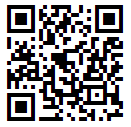
(01) 0950110120917
(17) 190508
(10) ABCD1234 - Tilde MOD Options - enabling
ProcessTilde will allow the following modulus calculation options, where
?? is the number of digits before the tilde to include
in the calculation:
- ~m?? Calculates a MOD10 check character, commonly
used for GS1.
Example: ~2020000801234999999999~m17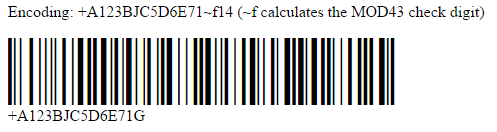
Encodes: (00) 008012349999999997 - ~f?? Calculates a MOD43 check character, commonly
used for HIBC.
Example: +A123BJC5D6E71~f14
Encodes: +A123BJC5D6E71G - ~i?? Calculates a MOD37-2 check character, commonly
used for ISBT.
Example: G123412654321~i13
Encodes: G123412654321L - ~k?? Calculates a MOD37-2 check character in brackets,
commonly used for ISBT manual entry. This option will not encode the
check character within the barcode and should only be used with the
HRI object.
Example: G123412654321~k13
Displays: G123412654321 [L]
- ~m?? Calculates a MOD10 check character, commonly
used for GS1.
- Tilde ASCII Encoding - ASCII functions and characters may be directly encoded with ~??? in Code 128 and ~d??? in Data Matrix and QR Code, where ??? is a 3-digit number of the ASCII code. When encoding ASCII functions, IDAutomation recommends testing the result with the GS1 Data Decoder App.
- QR Code Image Overlay - Center Override is used to change the center of the symbol; commonly used for easy Swiss QR-Bill generation when ProcessTilde is true.
- TLV and Base64 - QR Code version 2022 and later includes built-in support for TLV and Base64 encoding when ProcessTilde is true.
- Extended Channel Interpretation (ECI) is encoded using ~E according to the Extended Channel Interpretation (ECI) FAQ.
Support | API Reference
API Reference
- Locate Properties in the Java API
- REP-1401: A fatal PL / SQL error occurred in program unit cf_formula
- Cannot Access the Environment Variables on Windows 8 to install Java
- Demo Still Appears in Java Component after Purchase
- Demo appears after loading licensed version
- Exception in thread "main" java.lang.UnsupportedClassVersion
- Why is an extra character added to the end of a Codabar or Code 39 barcode?
- How to achieve a precise X dimension in the printed barcode when using a Servlet on the web
- Java Servlet does not display the barcode
- How can Reserved Characters that are used for HTML be encoded?
- Why are the check digits of Code 128 in the human-readable form not viewable?
- Java Program or Servlet hangs after creating a barcode
- Setting print resolutions and DPI
- Can the Java Barcode Package or Servlet be used to create JPEG files in JDK 1.1?
- Can extended ASCII characters be encoded and scanned?
- Data Matrix JavaBean or Applet produces scrambled output.
- Drawing several barcodes on the same graphic
- Barcode images do not consistently display or print correctly
- Does the Maxicode component support UPS Compression?
- Barcode image is too large after it is created
- How can a title be placed on the image similar to the demo?
Support
Free product support may be obtained by reviewing the knowledge base articles that are documented below and by searching resolved public forum threads.
Priority phone, e-mail, and forum support are provided up to 30 days after purchase. Additional priority support may be obtained if a Priority Support and Upgrade Subscription is active.
